On this page
Separate file rules, such as size and dimensions, from visual rules, such as background and face position. WhatTheFile checks understood file rules; you still need to inspect the photo.
Try the example in WhatTheFileMost upload problems begin before the file picker opens. The form gives you several rules in one small sentence, and it is easy to miss one of them.
Read the requirement once for the photograph itself, then once for the digital file. Those are related, but they are not the same thing.
Separate the visual rules from the file rules
Visual rules describe the photograph: background colour, face position, expression, lighting, clothing or how much of the shoulders should be visible.
File rules describe the upload: JPG or PNG, a maximum size such as 200 KB, a minimum size, or exact pixel dimensions.
Use the tool for file size, format and pixel dimensions. If the required shape would trim the original, a crop preview opens before processing. Reposition the photo there, then check the face, hair and shoulders before confirming.
A safer order of work
- Choose a photo that already satisfies the visible photo rules.
- Save an untouched original.
- Use WhatTheFile to create the required format and file size.
- Open the result and check the face, background and edges.
- Upload only after the tool reports that the understood requirements passed.
If the portal gives a range, include both numbers. A 15 KB file may be “under 100 KB” but still fail a rule that says the file must be between 20 KB and 100 KB.
Do not rely on the filename alone
A file called photo.jpg can still contain the wrong image format if it was renamed manually. It can also contain unusual characters that an older portal struggles to read. A simple name such as anmol-photo.jpg is easier to work with.
The final check belongs to the person submitting the form, not to the conversion tool.
If the portal still says no
Take a screenshot of the exact error before changing anything else. It may point to dimensions, minimum size, file type or a portal-specific photo rule. Change one thing at a time so you know what solved it.
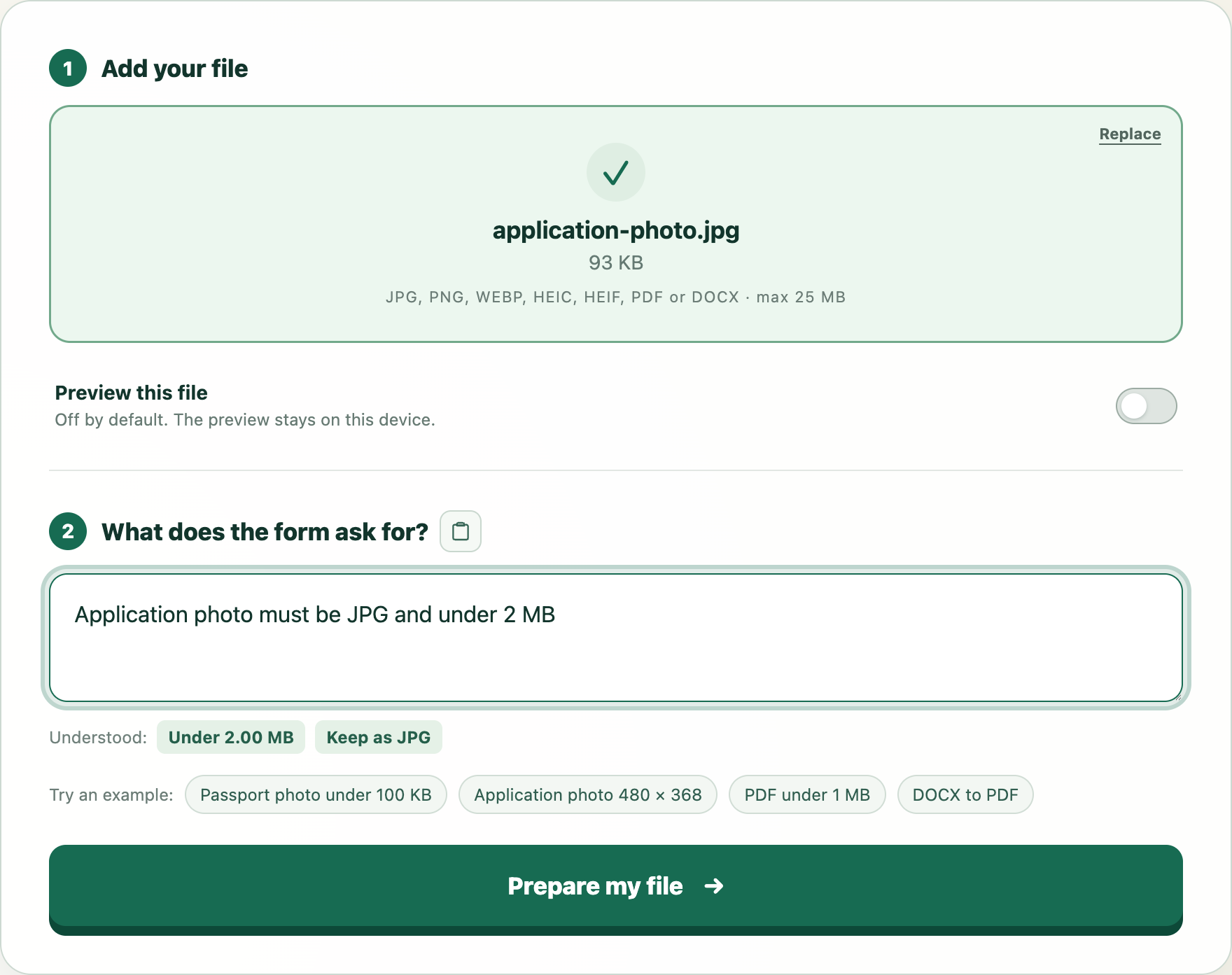
Try this example
We will open WhatTheFile and place Application photo must be JPG and under 2 MB in the requirement box. You can review and change it before preparing your file.