On this page
Check the downloaded file’s minimum and maximum size, real format, dimensions and filename. If those pass, check the portal’s visual photo rules and exact error message.
Try the example in WhatTheFileYou resized the photo. The file is below the stated limit. It is even called photo.jpg. The portal still rejects it.
This is common because “photo requirements” often combine several checks, while the error message mentions only one of them.
Check the rule you can prove
Start with the downloaded file, not the original. Confirm its actual size and format. If you used WhatTheFile, look at the pass or fail list shown with the result.
- Is the file below the maximum and above any minimum?
- Is it really JPG or PNG, rather than a renamed file?
- Does the portal require a particular filename?
- Are the stated width and height in the expected order?
Then check what a compressor cannot see
Government, passport and exam portals may check the face, background, lighting, head size, borders or whether the image appears to be a scan. WhatTheFile does not validate those rules.
When the required shape would remove part of the image, WhatTheFile shows the crop before processing. Move or zoom the image until the face, shoulders, signature strokes or document text you need are safely inside the preview.
Try the boring fixes too
Older portals sometimes fail for reasons that have little to do with the picture. Rename the file using letters, numbers and a hyphen. Avoid brackets, extra full stops and very long names. Sign out and back in, or try a current browser after saving your form details.
If the error persists, keep the exact message and contact the portal's support team. Do not send them extra identity documents unless they request them through an official channel.
Change one variable at a time. Otherwise, you will not know which requirement was actually failing.
When to start again
If the result looks blurry, heavily pixelated or badly framed, return to the original photograph. Making an already compressed copy smaller again usually makes the damage more visible.
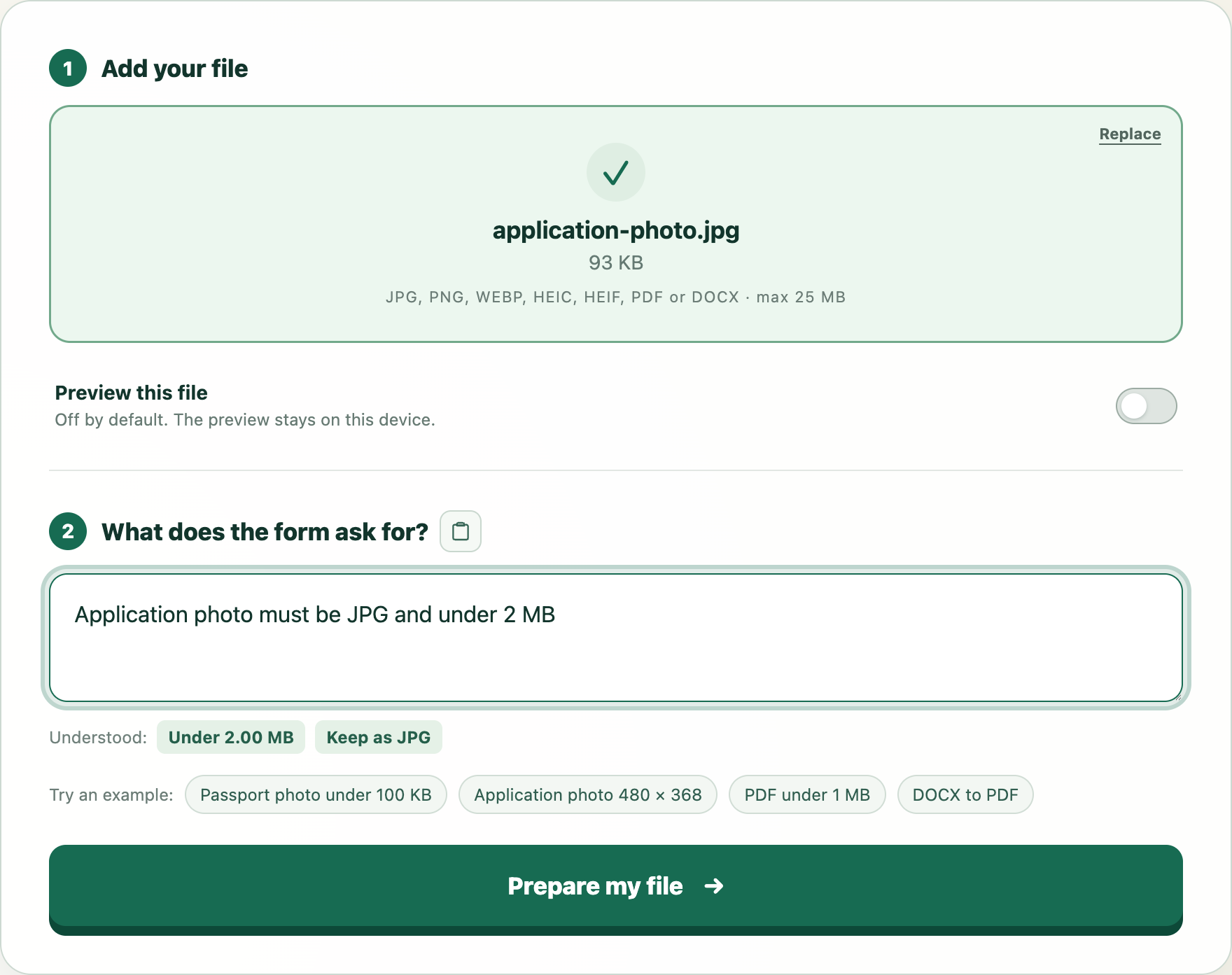
Try this example
We will open WhatTheFile and place Application photo must be JPG and under 2 MB in the requirement box. You can review and change it before preparing your file.