On this page
Permanently cover private details with local keyword search and manual boxes. Learn what redaction removes, what OCR can miss, and how to check the download.
Open private redactionYou need to share a document, but the recipient does not need your account number, home address or signature. Redaction creates a copy with selected information removed. The original stays yours.
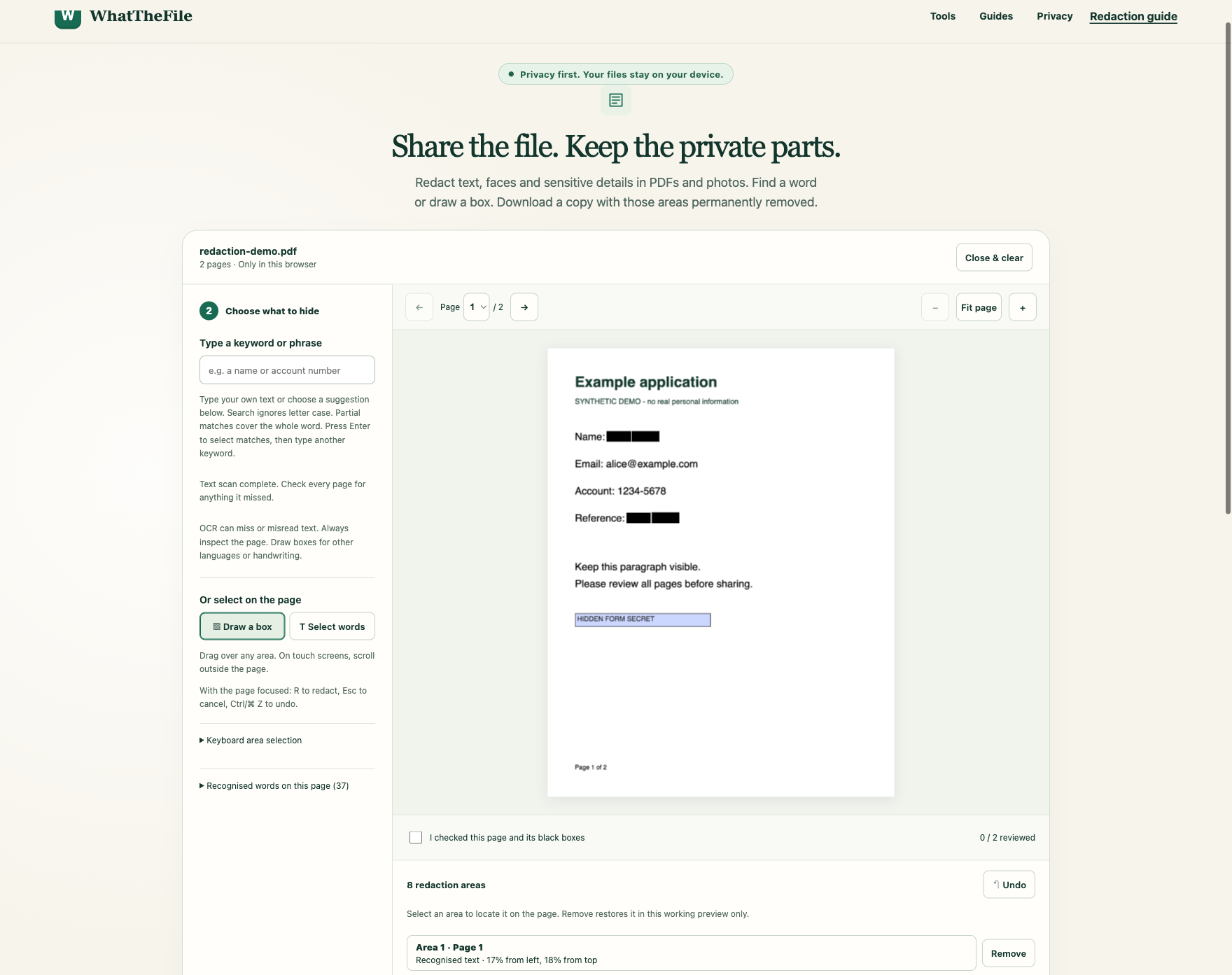
Open the private redaction tool, choose a PDF or photo, find a word or draw an area, then apply the black boxes. Review every page and create a redacted copy. Nothing is uploaded.
Redaction for different kinds of documents
The information to hide depends on who will receive the copy and why. These guides explain different review decisions, not just different names for the same task.
- Medical records and lab reports: repeated patient identifiers, codes and identifying narrative details.
- Legal documents and exhibits: partial identifiers, signed originals and filing-format requirements.
- HR records and subject access responses: contextual third-party review and disclosure records.
Browser-local processing keeps files off our servers. It does not decide what you may disclose or make the result compliant with a particular regulation.
Why an ordinary black box is not enough
A rectangle drawn over PDF text may leave the text beneath it intact. A recipient may still be able to copy it or remove the shape. A translucent marker can also leave information visible.
WhatTheFile paints solid black pixels over your selected areas, then creates a new PNG or image-only PDF. It does not copy original PDF text layers, attachments, comments or document metadata. The covered pixels are not included in the new file.
Redact a file step by step
- Choose your file. Open one PDF, JPG, PNG, WEBP, HEIC or HEIF under 25 MB. The preview opens locally and the English text scanner starts. PDFs have no fixed page-count cap; available device memory still matters; photos can have up to 24 megapixels.
- Find a word or phrase. Type a name or account number. Suggestions use recognised words from this file. Inspect the highlighted results, then choose Select all matches or press Enter. Type another keyword if needed, then choose Redact selected areas. Selecting matches waits for scanning to finish or be stopped.
- Repeat an area if needed. Draw a box on a page, then choose Select same areas on all pages before redacting. This repeats manual areas at the same relative position, which helps with recurring headers or footers. Inspect pages with different layouts. Keyword search already finds matches across scanned pages.
- Cover anything else. Choose Draw a box, drag across the area, then choose Redact selected areas. Use it for signatures, faces, QR codes and missed text. In Select words mode, click recognised words and apply the selection.
- Review every page. Zoom in and check the black boxes. Mark pages individually or confirm that you have reviewed all pages using the checkbox above download. Reviewed pages are labelled in the page picker. Use Undo or remove an individual area if necessary. Any edit resets the review.
- Create and download the copy. Apply or cancel unfinished selections. Choose Download redacted copy, to download redacted.pdf or redacted.png. Open that copy before sharing.
For keyboard use, open the recognised-word list or position an area with percentage fields. With the page editor focused, press R to apply a selection, Escape to cancel it, or Control/Command Z to undo. On a phone, scroll outside the page while Draw a box is active.
Keyword suggestions and OCR limits
Optical character recognition, or OCR, reads visible text from page images. The model runs on your device, including for PDFs, so suggestions correspond to the same visible page you are editing. Search ignores letter case and treats punctuation literally. A partial match covers the complete recognised word.
Suggestions are not a list of everything sensitive. English OCR can miss handwriting, faint print, rotated text or other languages. A number such as 1001 might be read incorrectly. Try a shorter distinctive part, inspect the page, and use a manual box when necessary. Review repeated details on every page.
No matches does not mean no private information. QR codes, barcodes, faces and signatures need your visual review. Recognition is assistance, not a guarantee that a document is safe to share.
What changes in the download
Every PDF page becomes a lossless PNG inside a new PDF. Original page dimensions are retained, but rendering is limited to 180 DPI and a 2400-pixel longest edge. Fine print may look different and file size can increase. Selectable text, links, forms, digital signatures and accessibility tags are not preserved.
Photos download as PNG, with transparency placed on white. Original image metadata is not copied. A neutral filename avoids carrying a name or account number from your source filename into the download.
How the private processing works
The site downloads its OCR engine and English model from WhatTheFile. Your file, recognised text and search words remain in browser memory and are not sent to an AI service. Ordinary website request logs can still exist. Close the file or tab to release the working document; downloaded copies remain wherever you save them.
The browser may cache public engine assets. This is not a promise that a fresh visit will work offline. Read the Privacy Policy for the complete boundary.
A final check before sharing
- Open the downloaded copy, not the original.
- Inspect every page at a readable zoom, including the edges of black boxes.
- Check for repeated details, codes, signatures and information visible in the surrounding context.
- Confirm that text cannot be selected or copied from the image-only PDF. This check alone does not prove you covered every sensitive detail.
- Attach only the redacted copy and keep the original separately.
If you need to preserve searchable text, accessible PDF tags or complex interactive content, this image-based workflow is not a suitable substitute for a specialist PDF redaction workflow.
Keep your next file private
Choose a file, review your redactions and download a new copy. Nothing is uploaded.
Open private redaction →